How to Segment LLM Traffic in GA4: A Complete Guide
August 2025 · 9 min read
🚀 TL;DR: Learn how to track AI-powered traffic from ChatGPT, Claude, and Perplexity in Google Analytics 4. Discover three proven methods that will give you a competitive edge in understanding your new AI visitors.
The AI Traffic Revolution is Here
AI is fundamentally changing how users discover your content and website.
With the rise of platforms like ChatGPT, Claude, and Perplexity, search is happening in entirely new ways. This shift creates both massive opportunities and critical challenges for businesses tracking their web traffic.
4 Reasons Why You Should Segment LLM Traffic?
1. Behavior
The simple answer is: to understand your users' behavior.
2. AI Momentum and new traffic sources
AI is gaining a lot of momentum and changing how users discover you or your content. And search is increasingly happening through platforms like ChatGPT, Claude and Perplexity etc.
3. New Traffic Sources
With these new AI platforms, we have entirely new sources of traffic coming to our website that we've never seen before.
You need to be aware of these changes to update your strategy and stay competitive.
4. Monitor Traffic Changes
Certain reliable sources of traffic may have dropped! Most businesses aren't tracking their AI traffic so you'll have a competitive advantage.
The Business Questions We Want to Answer
We want a breakdown of this AI traffic to understand:
- Where these visitors are landing on our website
- Analyse if it's sending us quality visitors
- If these visitors are actually converting (if they are what can we do about it!)
For those reasons understanding AI/LLM traffic needs to be added to your bag of tricks.
Let's dive in and discover how to turn AI traffic insights into business growth.
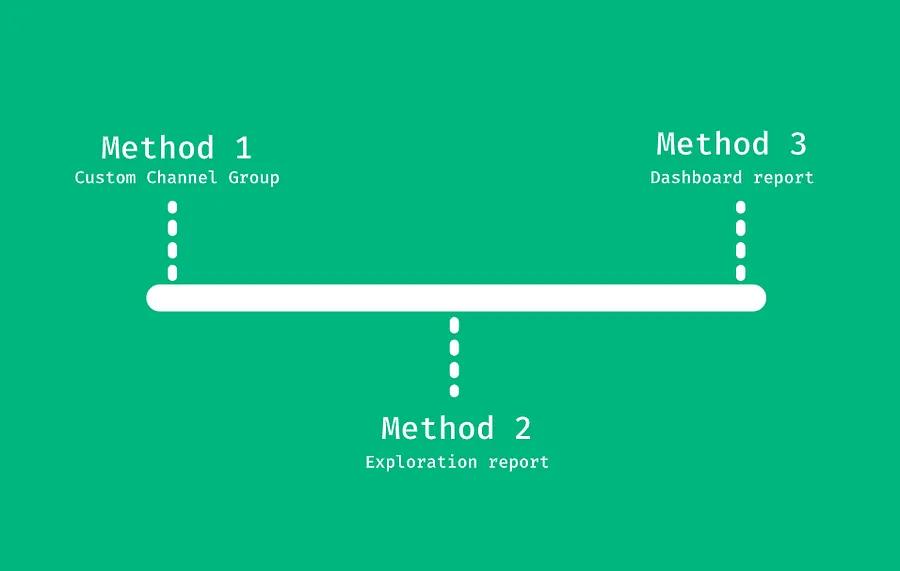
3 Ways to Segment Your AI Traffic in GA4
Here are the three proven methods to track and analyze your LLM traffic, ranked by importance and ease of implementation:
🥇 1. Custom Channel Group (HIGHLY RECOMMENDED)
This is the gold standard - the one you should definitely implement first.
Set up the Custom Channel Group to permanently categorize your AI traffic for the long term. This creates a foundation that will serve you for years to come.
Key Benefits:
- ✅ Permanent categorization - that persists across all reports
- ✅ Automatic application - to new data as it comes in
- ✅ Consistent tracking - across your entire analytics setup
- ✅ One-time setup - works forever
🥈 2. Exploration Report (FLEXIBLE ANALYSIS)
Perfect for deep-dive investigations when you need specific insights.
Use the Exploration Report for flexible, one-off analysis when you need to dig deeper into specific aspects of your AI traffic.
Best For:
- Deep-dive analysis sessions - Investigate specific questions
- One-time investigations - Ad-hoc research needs
- Custom visualizations - Create unique insights
- Data exploration - Discover hidden patterns
🥉 3. Custom Report (QUICK MONITORING)
Your daily dashboard for keeping tabs on AI traffic performance.
Create the Custom Report to give yourself a fast, repeatable way to check in on that traffic without building or modifying an exploration report every time.
Perfect For:
- Regular monitoring - Daily/weekly check-ins
- Stakeholder reporting - Share insights with your team
- Quick performance checks - Fast status updates
- Trend tracking - Monitor changes over time
Method 1: Creating a Custom Channel Group (Best for Permanence)
- ✅ Permanent classification - appears in all standard GA4 reports
- ✅ Fully retroactive - re-categorizes ALL historical data automatically
Let's setup GA4 to automatically recognize AI traffic as its own channel, just like 'Organic Search' or 'Direct'.
For that, we'll create a Custom Channel Group.
In your GA4 environment go to: Admin→Data display→Channel Groups.
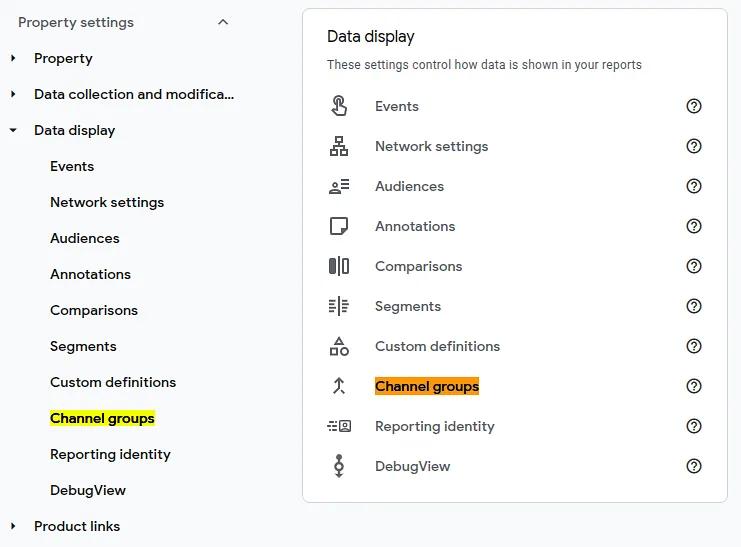
You'll see a list of channel groups. If you never made one, then all you'll see is "Default Channel group".

There are 18 channel groups (as of writing this - August 2025) that you usually see in your reports.
Now click on "Create new channel group" then:
- Name it something that makes sense (e.g. AI Platforms)
- Select your condition to be "Source"
- Select "matches regex"
- Paste the following regex:
^.*ai|.*.openai.*|.*copilot.*|.*chatgpt.*|.*gemini.*|.*gpt.*|.*neeva.*|.*writesonic.*|.*nimble.*|.*outrider.*|.*perplexity.*|.*google.*bard.*|.*bard.*google.*|.*bard.*|.*edgeservices.*|.*astastic.*|.*copy.ai.*|.*bnngpt.*|.*gemini.*google.*$Name it the following:
- Name: AI Platforms
- Description: All the traffic that is driven by AI platforms
Note that this regex will most likely have to be updated when new tools/platforms are added.
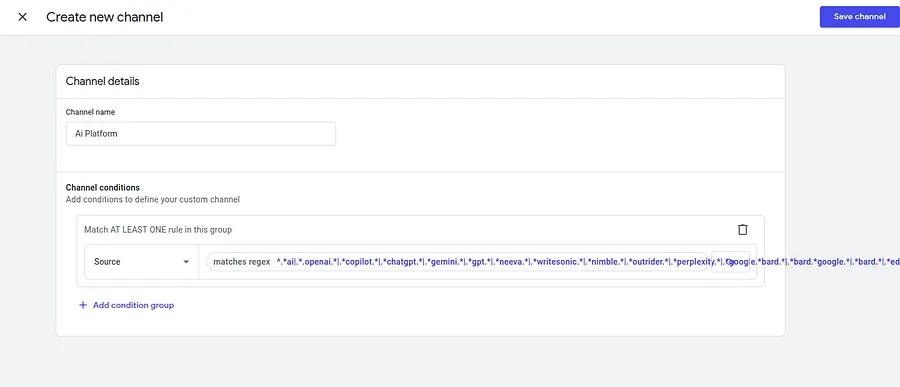
Sidenote on regex: It doesn't look too pretty, but it's a very powerful pattern matching function for strings (the developers way to say "text").
- Once you hit "save channel" we need not to forget a very important step!
- Without this step you won't see any traffic in GA4, so best not to forget.
- Click the "Reorder" button
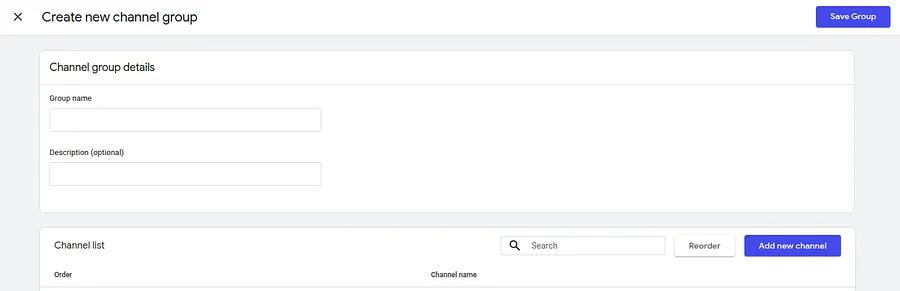
You'll most likely find your newly created channel group at the bottom

You need to click and drag the channel above the Referral group.
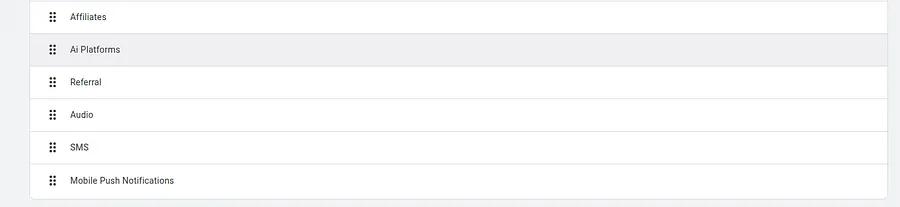
- If you're wondering why (then you're wondering well), a "Channel group" is like a bucket that will capture any traffic meeting specific conditions.
- Because our "Ai Platforms" is actually referral traffic, it will be captured by the "Referral" before it gets to ours.
- Thus by moving it up and before "Referral" we can label any traffic with "Ai Platforms" before sending any non matching conditions to the next bucket.
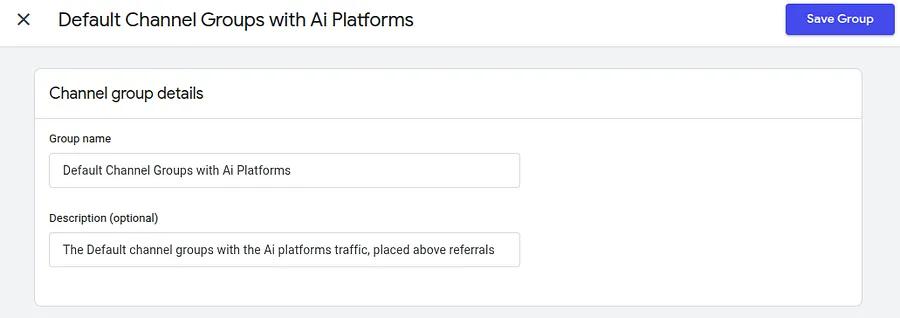
Lastly save this new Group and write a description (optional)
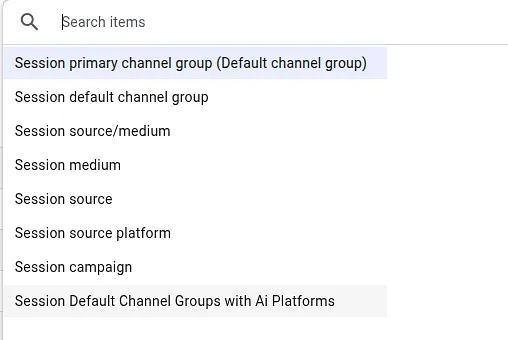
Now if you navigate to: reports→Acquisition→Traffic acquisition
Click the "Session primary channel group" dropdown

Then select the new Group we just created:
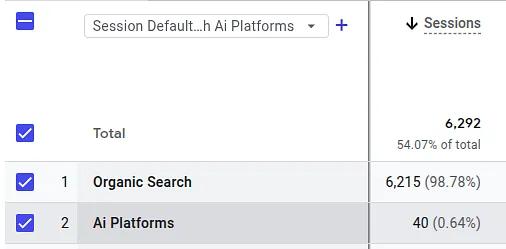
You will now be able to see how much AI traffic is coming to your website:
Method 2: The Exploration Report (Best for Flexibility)
❌ Shows AI traffic mixed in with "Referral," "Direct," etc. based on original GA4 categorization
✅ Immediate setup - works right away with existing data
✅ Flexible - can change regex anytime without permanent effects
There are four steps to doing this:
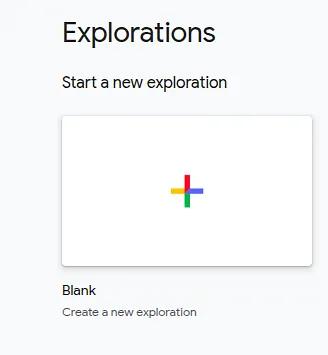
1. Go to Explore → Create a new Blank Exploration report:
2. In the dimensions section select "Session source" and "Landing page + query string":
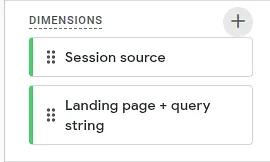
- You can select the combination you want of course, we chose "Session source" because it's simpler and won't confuse users as much as "Session source / medium" does.
- Also because we are going to filter on "Session source"
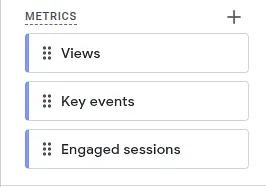
3. In the metrics section we're going to select "Views", "Key Events" and "Engaged sessions":
- Those 3 metrics will inform us well on the total traffic driven by AI platforms, if they were interested (engaged) and if they actually converted.
4. Lastly in the Filters section select "Session source":
- Then you will select the "matches regex" condition and paste the same regex we used above:
^.*ai|.*.openai.*|.*copilot.*|.*chatgpt.*|.*gemini.*|.*gpt.*|.*neeva.*|.*writesonic.*|.*nimble.*|.*outrider.*|.*perplexity.*|.*google.*bard.*|.*bard.*google.*|.*bard.*|.*edgeservices.*|.*astastic.*|.*copy.ai.*|.*bnngpt.*|.*gemini.*google.*$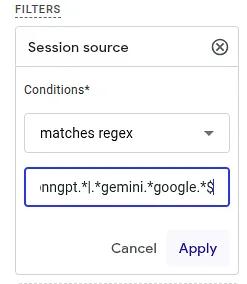
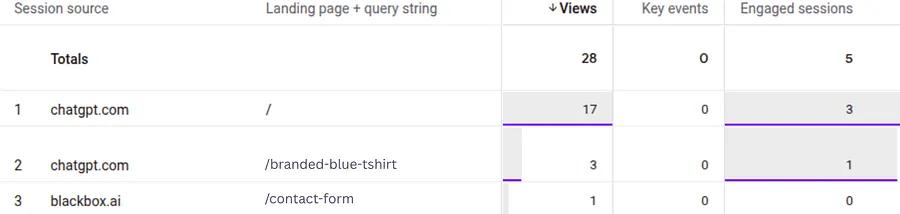
Click apply and you will get a clean breakdown:
- Now for the interesting part. We want to know which pages are used by the AI platforms that send you traffic.
- Simply add the "Landing page + query string" to the dimensions (or simply double click on it). You'll be able to see which pages from your website are actually referenced in the AI platforms responses.
Method 3: Creating a Report - Speed
Create the report
For this step to work you'll need to have created a new "Channel Group" (following method 1).
Once you have your channel group, that we called "Ai Platforms", you're ready to go.
Let's create a new report in order for you to have a dedicated AI traffic dashboard in GA4. That way you can check out your AI traffic in 2 clicks.
Go to: Reports→Library→Create new report→Create detailed report
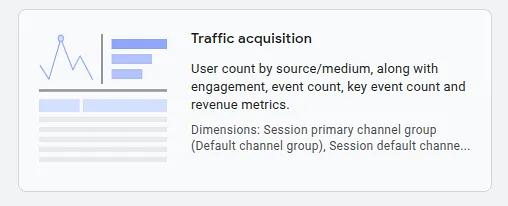
Select the Traffic Acquisition report:
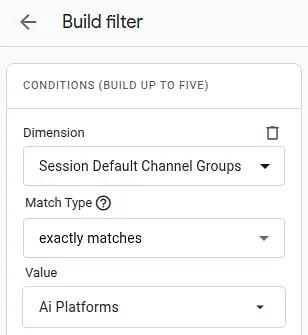
- Once in the report we're just going to add a filter to the report.
- For dimensions select the new channel group we created, in this case "Session Default Channel Groups (Ai Platforms)"
- Then the "match type" → exactly matches
- Value → "Ai Platforms". This the channel group we reordered in our channel group.
- This means that anytime traffic is "labelled" with "Ai Platforms" it will show in this report.
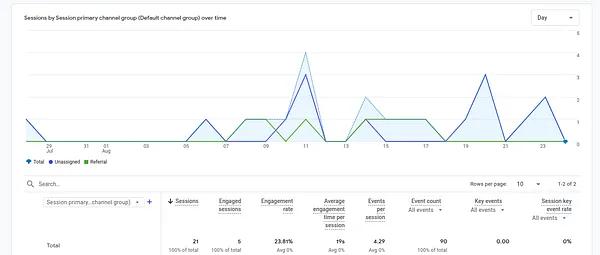
Click Apply and you will see a chart and table.
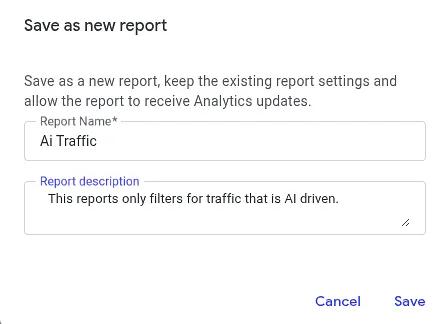
Don't forget to save your report:
Show your report on the dashboard
Lastly we want to get quick access to this report.
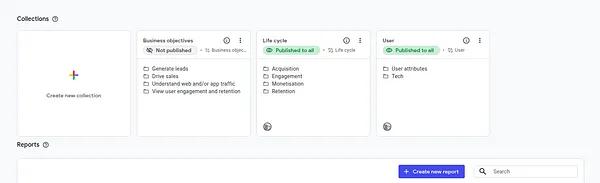
For this want to add it to our reports section, under the Acquisition lifecycle.
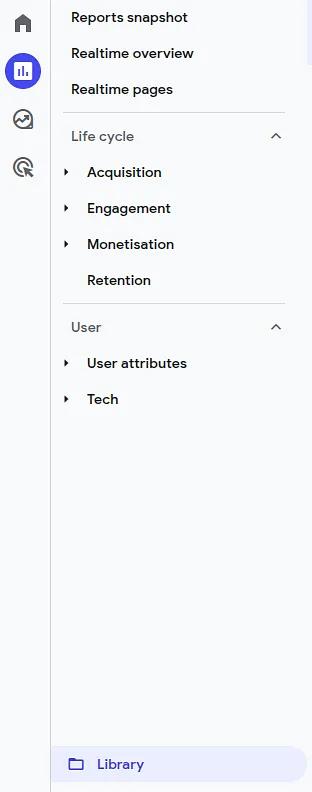
Go to: Reports→Library(at the bottom of the sections)
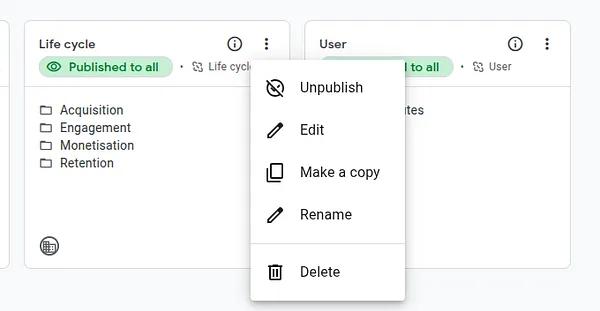
Select the life cycle panel, click the three dots and click edit:
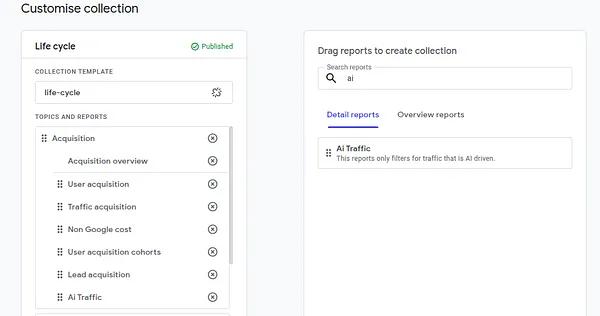
Search the "Ai" in the reports, then click and drag it into the correct section:
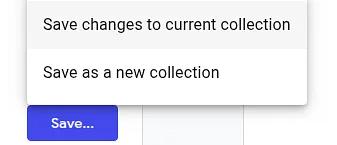
Finally don't forget to save it to the current collection.
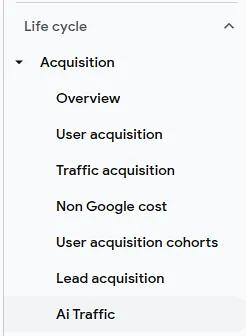
In your reports, you'll now be able to see the "Ai Traffic" report:
Extra Tips & Considerations
For Client Reporting:
If you have clients asking about AI traffic volume, consider building a Looker Studio dashboard. This gives them a professional, shareable view of their AI traffic trends and insights.
Important Limitations to Know:
Audiences are NOT retroactive - If you build an Audience for "AI visitors," it only fills from that point forward. This is different from Exploration segments, which are retroactive and can analyze historical data.
Pro tip: Start building your AI Audiences early so they have time to populate with data!
Keep Your Regex Updated:
New AI platforms emerge weekly/monthly - don't let your tracking become outdated!
Platforms to watch for:
- New ChatGPT competitors
- Enterprise AI tools
- Niche AI platforms in your industry
- Regional AI services
Conclusion
Now you have a complete system to understand how much traffic AI is driving to your website and which landing pages are being referenced across different AI platforms.
What We've Built:
We've covered three complementary approaches to AI traffic tracking:
- 🥇 Systematic Approach - Using Custom Channel Groups (your foundation)
- 🥈 Flexible Approach - Using Explorations (for deep-dive analysis)
- 🥉 Speed Approach - Using Custom Reports (for daily monitoring)
Your Competitive Edge:
While most businesses are still trying to figure out how to track AI traffic, you now have:
- ✅ Permanent categorization that works automatically
- ✅ Flexible analysis for any specific questions
- ✅ Quick access to daily AI traffic insights
- ✅ Professional reporting for clients and stakeholders
The Future:
AI traffic is only going to increase exponentially. With this system in place, you'll be ahead of the curve, understanding your visitors' behavior and optimizing your content strategy accordingly.
Don't wait - implement Method 1 (Custom Channel Group) today, and you'll start building your competitive advantage immediately!